Step-by-step Guide To Tech Performance Analysis: Boost
Ever feel like your tech is dragging its feet? Imagine having a clear, easy-to-follow roadmap that catches problems before they slow you down.
In this guide, we walk you through simple steps to check your system's performance so you can spot even tiny glitches early. Think of it as following clear directions on a map, each stage shows you where your setup might be falling behind.
We mix hands-on tests with practical tips, making it easier for you to boost your system’s speed and reliability.
Step-by-Step Performance Analysis Roadmap

A clear plan is key to nailing down performance analysis. It’s like having a trusty roadmap that checks every part of your tech setup, from hardware and software to network tweaks. This way, you catch issues early before they cause a bigger headache.
First, set up your testing environment. Make sure your hardware, software versions, and network settings match your live setup so you get real results.
Next, choose simple performance metrics like response time and throughput that show what’s really going on when the system is under load.
Then, design tests that mirror everyday use. Create scenarios that feel natural and set clear goals to know when you’re on track.
After that, get your test setup sorted. Install the tools you need and double-check that every piece is in the right place.
When you run the tests, keep an eye on the numbers. Monitor the data closely so you see how well your system keeps up under different conditions.
Once you’ve got your data, compare it against your benchmarks to spot any gaps or odd spikes.
Finally, run the tests again after making tweaks to build a solid, ever-improving performance check routine.
Following this step-by-step guide helps your team find and fix issues quickly, leading to a smoother, more reliable system.
Defining Metrics and Success Criteria for Performance Analysis

Getting your performance metrics to match your business goals is key to knowing how well your system works in the real world. When you choose the right success signals, you can easily spot problems and figure out what to fix next. Clear guidelines help tech teams and managers agree on what victory looks like. Even a small delay or a higher error count might hint at bigger issues lurking just below the surface.
- Wait time: This is measured in seconds or even milliseconds. It tells you how fast users start getting data. Quick delivery means a happier user experience.
- Average load time: Shown in seconds, this number tells you how long pages or apps take to fully load. Faster load times keep people interested.
- Peak response time: Recorded in seconds, this measurement highlights moments when the system slows down compared to its normal pace. These spikes can point to stress on your system.
- Error rate: Expressed as a percentage, this shows how many requests fail under heavy use. A higher rate could mean the system is struggling.
- Concurrent users: This is a simple count of how many people are using your system at the same time. It’s a good indicator of how well your system can scale.
- Throughput: Measured in kilobytes per second, this shows the speed at which data is processed. It helps you know if your system can handle lots of data quickly.
Don’t forget to record your starting numbers. Keeping these benchmarks makes it easier to track improvements over time.
Setting Up Your Analysis Environment and Tools

Begin by building a mini version of your actual system. Make sure your test setup mimics your live one, match the hardware, use the same software versions, and adjust network settings to match real-world conditions. It's like creating a smaller model of your production system where every detail, from CPU speed to network delay, feels just like what your users experience.
Next, pick your tools with care. Look for ones that can grow with your needs, support handy scripting, and give clear, easy-to-read reports. Tools such as TestGrid, Gatling, k6, Locust, Taurus, or LoadRunner each bring something different to the table. They work with various protocols and scripting languages, so choose one that fits your testing style. If you’re curious about combining performance monitoring with analysis, take a look at this performance monitoring software.
Finally, check that all your access points are ready. Verify your credentials, API keys, and connection details before you start collecting data. Running a quick smoke test can help spot any misconfigurations early on. This simple step lets you know that your setup is in prime shape for deeper performance analysis.
Collecting and Monitoring Data for Tech Performance

First, pick your data sources carefully. Look at simple metrics like CPU use, memory, and network traffic, and then check your app logs for real-time updates. When you track things like requests per second or note when transactions go through or fail, you get a clear picture of how your system handles heavy loads. For instance, jot down the exact moment when a rush of users makes the CPU work harder. This helps you find the pressure points in your digital setup.
Next, set up your monitoring with clear time intervals, well-defined thresholds, and trusty alerts. This setup makes sure every bump or drop in performance is noticed. When an error happens, log the details and snap some traces. This way, you can understand the whole event timeline later. It’s also smart to keep your timestamps accurate so you can match events across different systems. By keeping your data organized over time, your team can spot trends and gradual changes that might otherwise fly under the radar.
Finally, create a central dashboard to pull all this data into one clear view. These dashboards show visual snapshots of your performance metrics, making it easier to catch patterns and quickly fix any oddities. Bringing all your logs and stats together lets you thoroughly understand your system’s performance and keeps your digital architecture robust.
Interpreting Results and Identifying Bottlenecks in Performance Analysis

Imagine diving into performance analysis like a detective on a mission. You sort through heaps of data to find clues about how your system is behaving. Start by setting a clear baseline from your benchmarks, then check every key number against these standards. When something looks off, it’s like a red flag waving at you. For instance, if error rates suddenly spike during busy periods, that might hide a deeper problem despite an overall smooth average.
-
Benchmark Comparison
Begin by matching your current numbers with your established benchmarks. This step helps you see if today’s performance is up to the mark. For example, if your system usually loads in 2 seconds but takes 4 seconds during rush hours, it’s a sign you need to dig a little deeper. -
Anomaly Detection
Keep an eye out for oddities by comparing peak times with normal performance. Outlier data points can be hints showing where issues might lurk. If something doesn’t fit the pattern, that’s your cue to explore it further. (Need more tips? Check out recent tech analysis patterns at https://ServersFree.com?p=1805.) -
Trend Correlation
Mix and match different metrics, like error rates and CPU use, to see if they form a pattern. Sometimes, the way these numbers move together can tell you more about what’s really going on in the system. -
Spike Analysis
Look into sudden jumps in metrics, such as quick rises in memory usage. These spikes can help you understand short bursts of system stress and pinpoint what might be causing them. -
Resource Tracebacks
When you spot unusual CPU or memory surges, trace them back to their source. This often means checking your logs to figure out which processes are behind those unexpected readings.
Jot down your findings carefully. Having detailed notes, along with the context of each test, makes it a lot easier for your team to troubleshoot and fix issues later on.
Troubleshooting and Remediation Strategies for Performance Issues

When your site feels slow, error messages pop up more often than expected, or resources start fighting for control, consider these as little hints that something’s not quite right. Sometimes a load test might show a smooth average, but then a sudden error spike points out that you might be missing the full picture. Often, teams lean on just one test or use scripted scenarios that don’t match how real users behave. And while it might seem easiest to just add more hardware, that trick often covers up the deeper problem.
Here’s a simple plan to get back on track. First, break the issue down by running several different tests. By looking at multiple scenarios, you can spot exactly where performance begins to drag. Next, fix the issue bit by bit: tweak settings and adjust configurations based on what you see in real-world readings. After making these small changes, test again to ensure things are improving. And don’t forget to plan for a rollback, just in case something new goes wrong. Rolling out changes in stages lets you keep a close eye on improvements as you go.
Keep it simple, test thoroughly, and always be ready to adjust, this method helps you tackle performance problems at their core.
Reporting Findings and Establishing a Performance Feedback Loop

When you hand over performance reports, it’s important to know who you’re talking to. Managers want a clear, big-picture view, while tech teams look for the nitty-gritty details. We break down complex data into simple visuals and detailed logs so everyone can understand what’s happening and how to move forward.
Manager-Level Summary
Give managers a quick look at the main findings. Use straightforward charts and graphs to show key numbers like load times and error rates. A line graph that shows improving response times, with a note on any unexpected spike, helps guide smart decisions. And don’t forget to include a few sharp recommendations that point out where to focus next.
Engineer-Focused Report
For the technical team, provide an in-depth breakdown with raw data, detailed methods, and full trace logs. Explain each step clearly so engineers know exactly what to adjust. For example, if you see CPU spikes lining up with more errors, engineers can check that specific process. Each set of fixes should feed back into a continuous cycle of improvements, mapping each change against clear milestones to keep everyone accountable.
Advanced Benchmarking and Capacity Planning Techniques
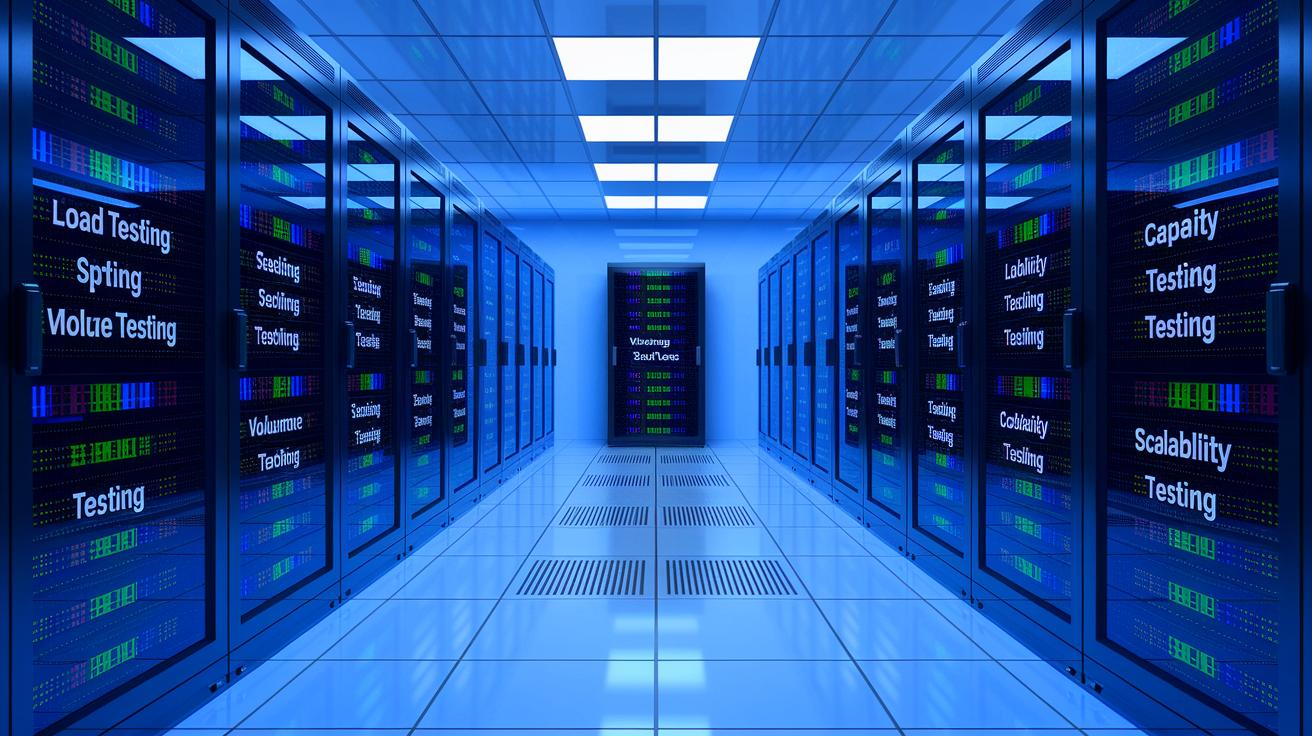
Load testing acts like a rehearsal of everyday user activity, showing you how your system handles normal traffic. Stress testing, on the other hand, pushes your system past its comfort zone to see when it starts to slow down. Spike testing quickly ramps up the load to reveal any sudden hiccups, while endurance testing keeps an eye on performance over long periods to catch issues that crop up gradually. Volume testing dumps a lot of data into the mix, and throttle testing simulates slow network connections. Capacity testing finds the breaking point of your system, and scalability testing checks if it can grow smoothly. Each test tells you what works and what needs a little fixing.
A strong capacity planning process kicks off with a look at real data. You review past performance numbers and set load targets based on what you expect in the future. For instance, if you're gearing up for a flash sale, you need to know how many users your system can support without slowing down. Simple measurements like CPU usage, memory, and response times help you not only forecast future demand but also spot any limits in your current setup.
Next, it's time to pick the right way to scale. Vertical scaling means boosting your existing hardware resources, while horizontal scaling adds more servers to share the load. Test these options with realistic user simulations mimicking peak events. Then, re-test each change to make sure your system keeps up with performance goals and stays reliable even when the load spikes.
Best Practices and Common Pitfalls in Tech Performance Analysis

Start by setting clear goals. This simple step builds a strong base for all your testing work. Make your tests act like real users so they mirror everyday actions. Automate your tests in CI/CD pipelines to catch problems early and keep things running smoothly. Keep your test setup close to your live environment, so the performance data you collect truly reflects how your system works. For example, when you simulate a rush of user actions, you see firsthand how your system handles pressure.
Don’t depend on just one type of load test. A single test might miss real-world challenges. Also, don’t ignore parts like third-party services because they can hide big issues. Relying too much on hardware upgrades while ignoring software bugs only covers up problems for a little while. Mix up your tests and review your strategy often. A thoughtful, regular check helps avoid surprises and makes your system stronger and more reliable.
Final Words
In the action, our blog laid out a clear, step-by-step performance analysis roadmap that breaks the process into manageable pieces. We walked through setting up the test environment, choosing key metrics, collecting data, and interpreting results to diagnose issues efficiently. The guide also addressed troubleshooting methods, comprehensive reporting, and capacity planning for future challenges. By following this step-by-step guide to tech performance analysis, you can confidently improve system performance and boost overall efficiency. Stay positive and enjoy the rewarding journey of smart tech management.
FAQ
What are the key steps in the data analysis process?
The key steps in the data analysis process include identifying your testing environment, defining performance metrics, planning tests, configuring setups, executing tests with data capture, analyzing results, and retesting to drive improvements.
Which step in the data analysis process involves collecting data for analysis?
The data collection step occurs during test execution when systems gather real-time metrics like CPU utilization and transaction counts to provide solid data for performance review.
What is an example of data analysis in research?
An example of data analysis in research involves evaluating load times and error rates from multiple tests to fine-tune system configurations and validate research hypotheses effectively.
How do you perform data analysis in Excel?
Data analysis in Excel involves sorting and filtering raw data, using pivot tables and formulas to summarize performance metrics, and creating charts to highlight trends and anomalies clearly.
What does the 80/20 rule mean in performance testing?
The 80/20 rule in performance testing means addressing the 20 percent of issues that cause 80 percent of the problems, allowing you to focus on the areas with the most significant impact on system performance.
What are the five steps of the performance process?
The five steps of the performance process include planning tests, designing realistic scenarios, executing tests, analyzing outcomes, and iteratively refining the system for optimal performance.
What are the top five key performance indicators in IT?
The top five key performance indicators typically include wait time, average load time, peak response time, error rate, and throughput, each helping assess different aspects of system efficiency.
What is technical performance analysis?
Technical performance analysis examines metrics such as response times, error rates, and throughput to identify inefficiencies and guide system refinements, ensuring reliable and smooth operation.

Tech Analysis Patterns Fuel Confident Market Moves

Iot Device Connectivity Analysis Review: Superior Insight

Florida Tech Behavior Analysis Sparks Academic Success
About The Author
